How it works
This desktop application helps creators clip videos and upload content to supported platforms using a user-initiated workflow. YouTube uploads are available now. TikTok upload support is coming soon.
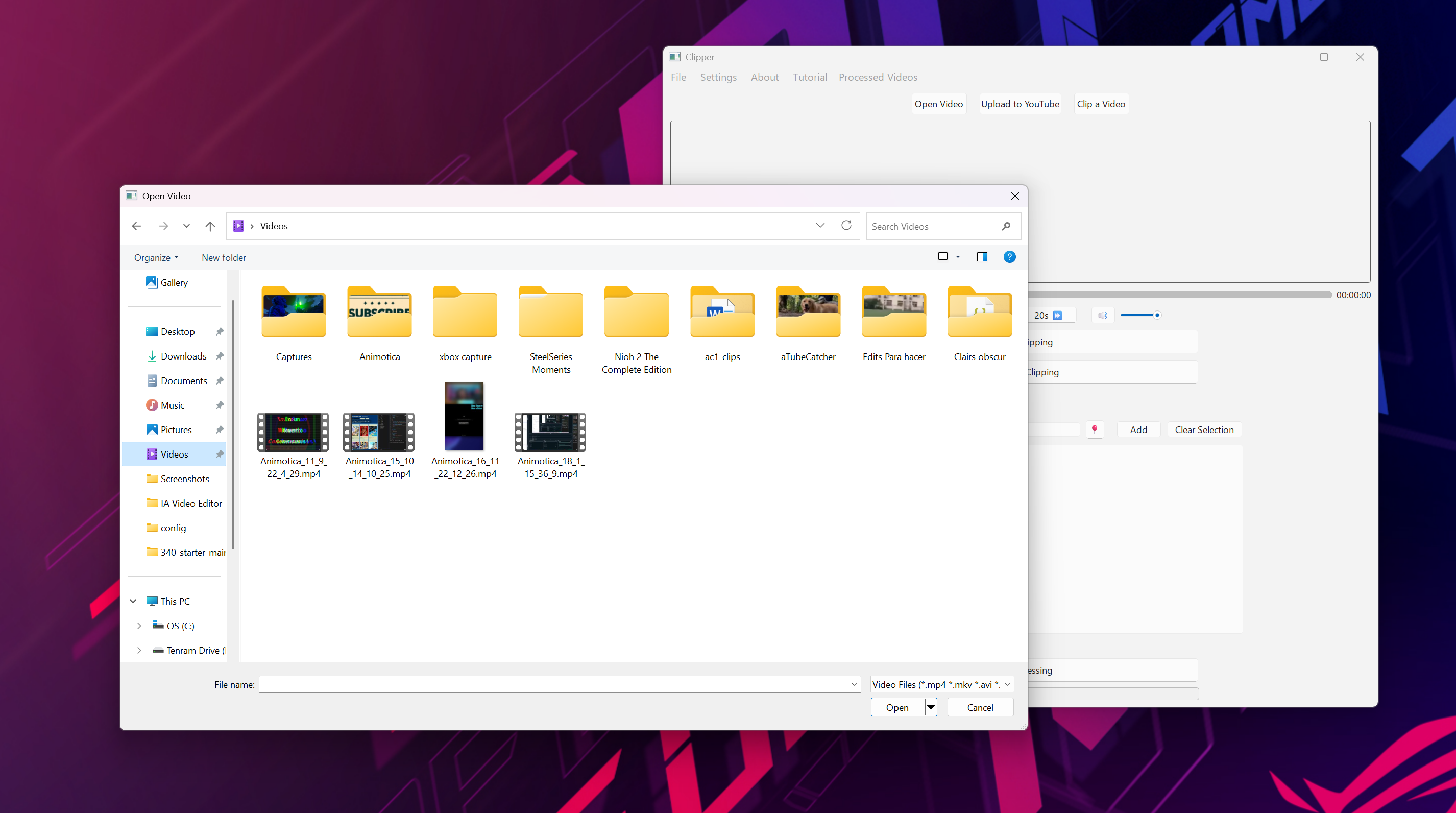
Step 1 — Open a video
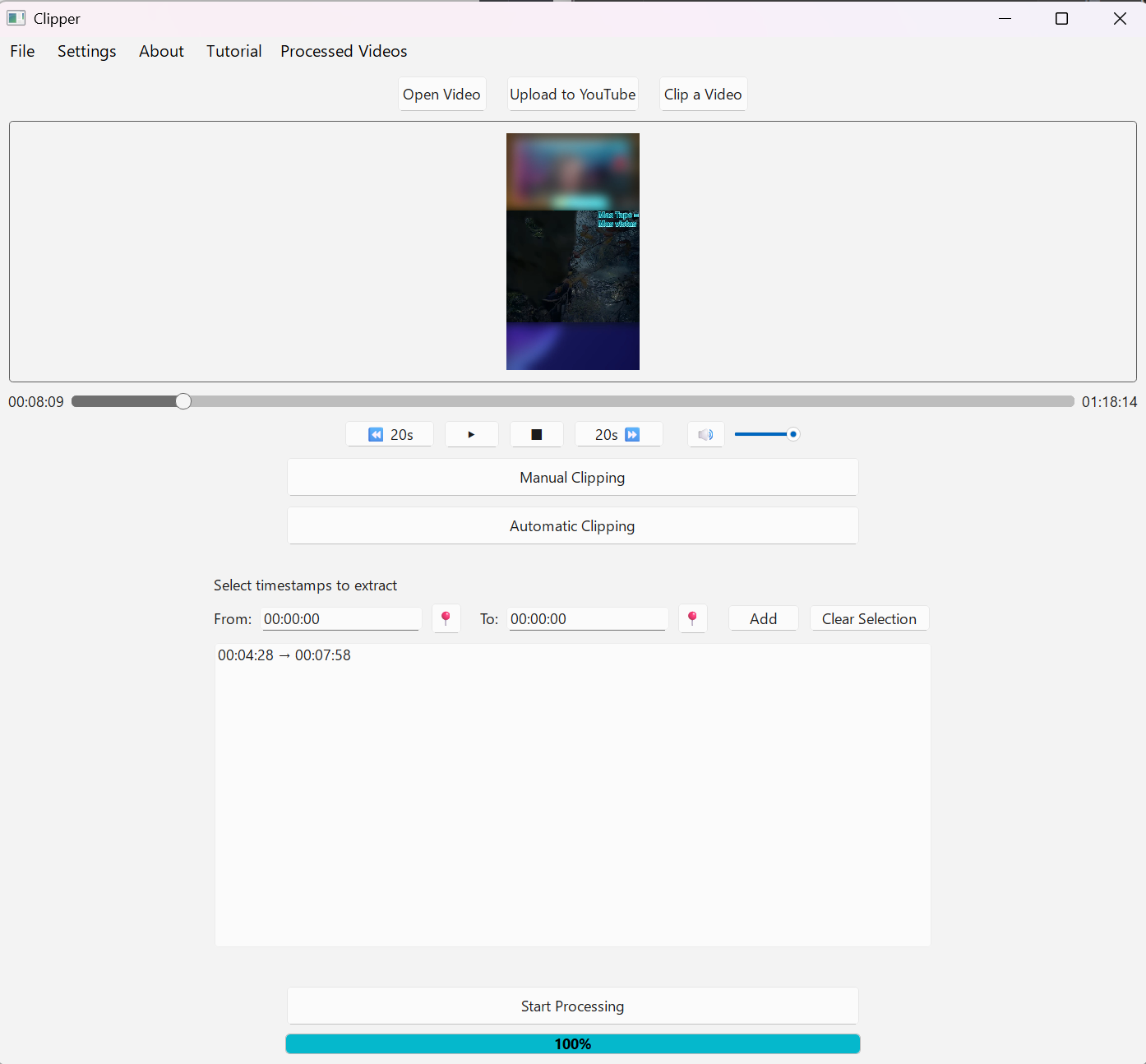
Click Open Video to load a file into the player. Preview playback and scrub the timeline.
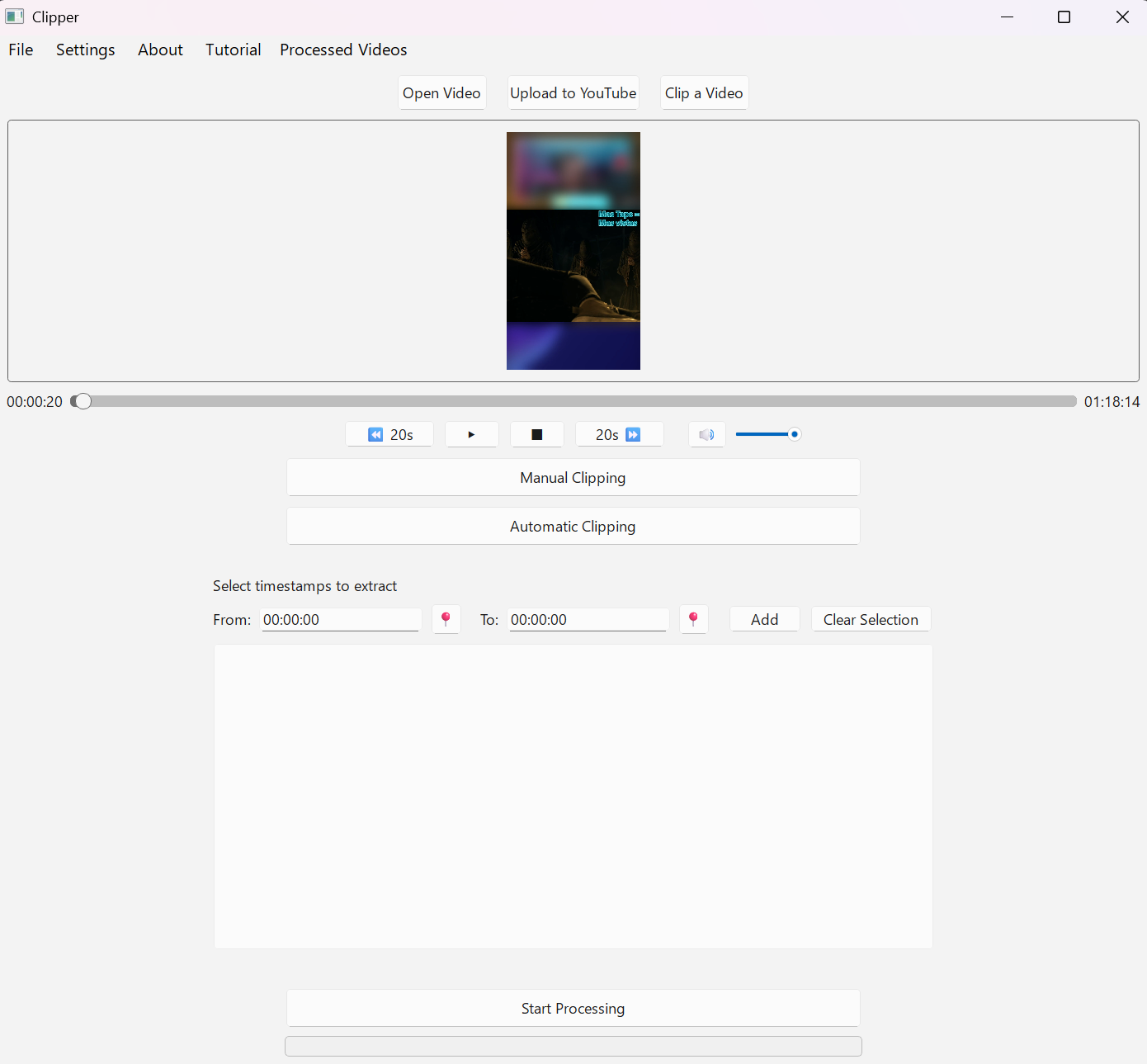
Step 2 — Clip the video
Manual clipping: choose start/end or click pin to mark start/end timestamps and add clips with full control.
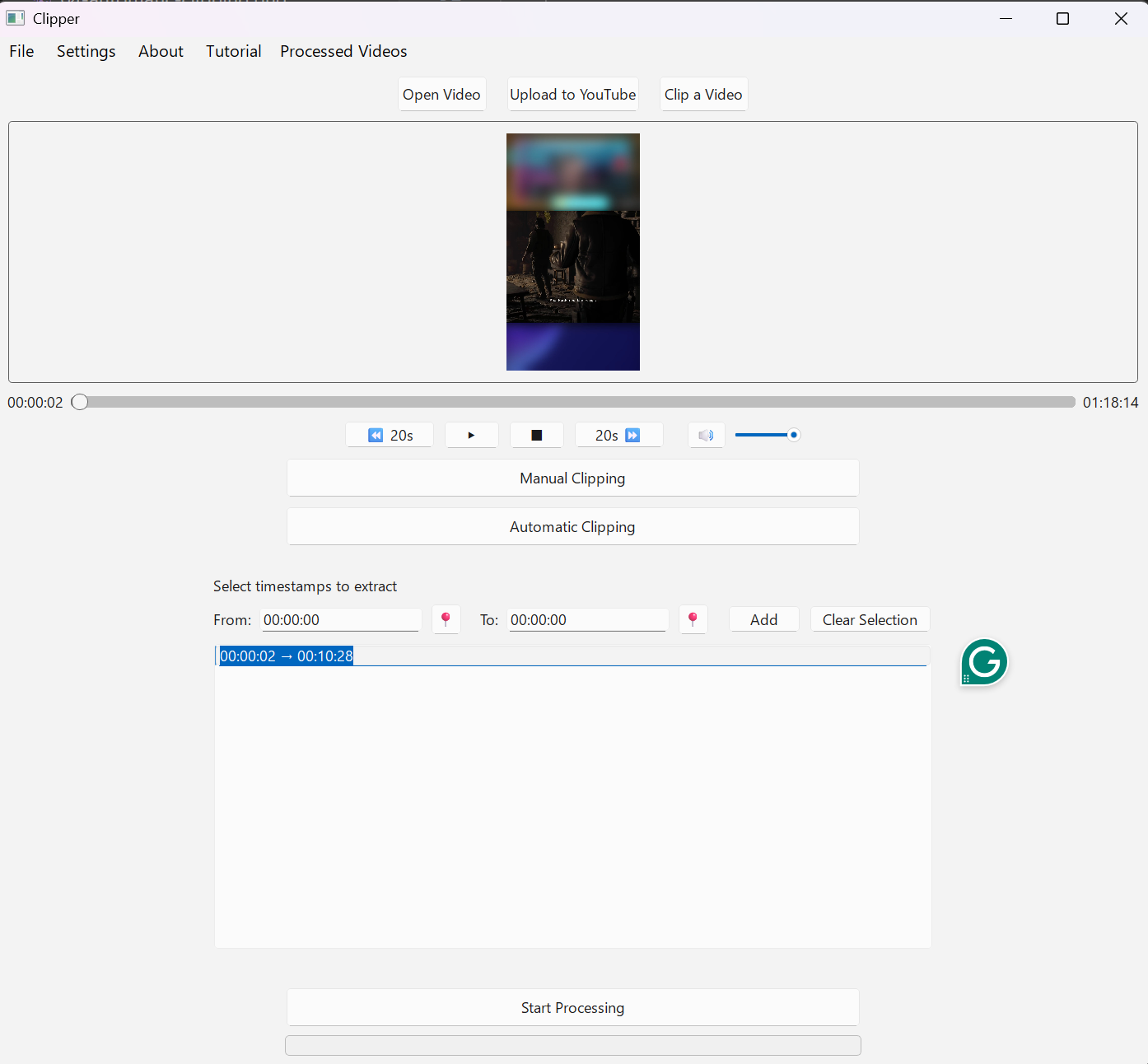
Step 2.1 — Clip the video
Manual clipping: You can edit or delete the clips after they are generated, double click will also send you to that part of the video.
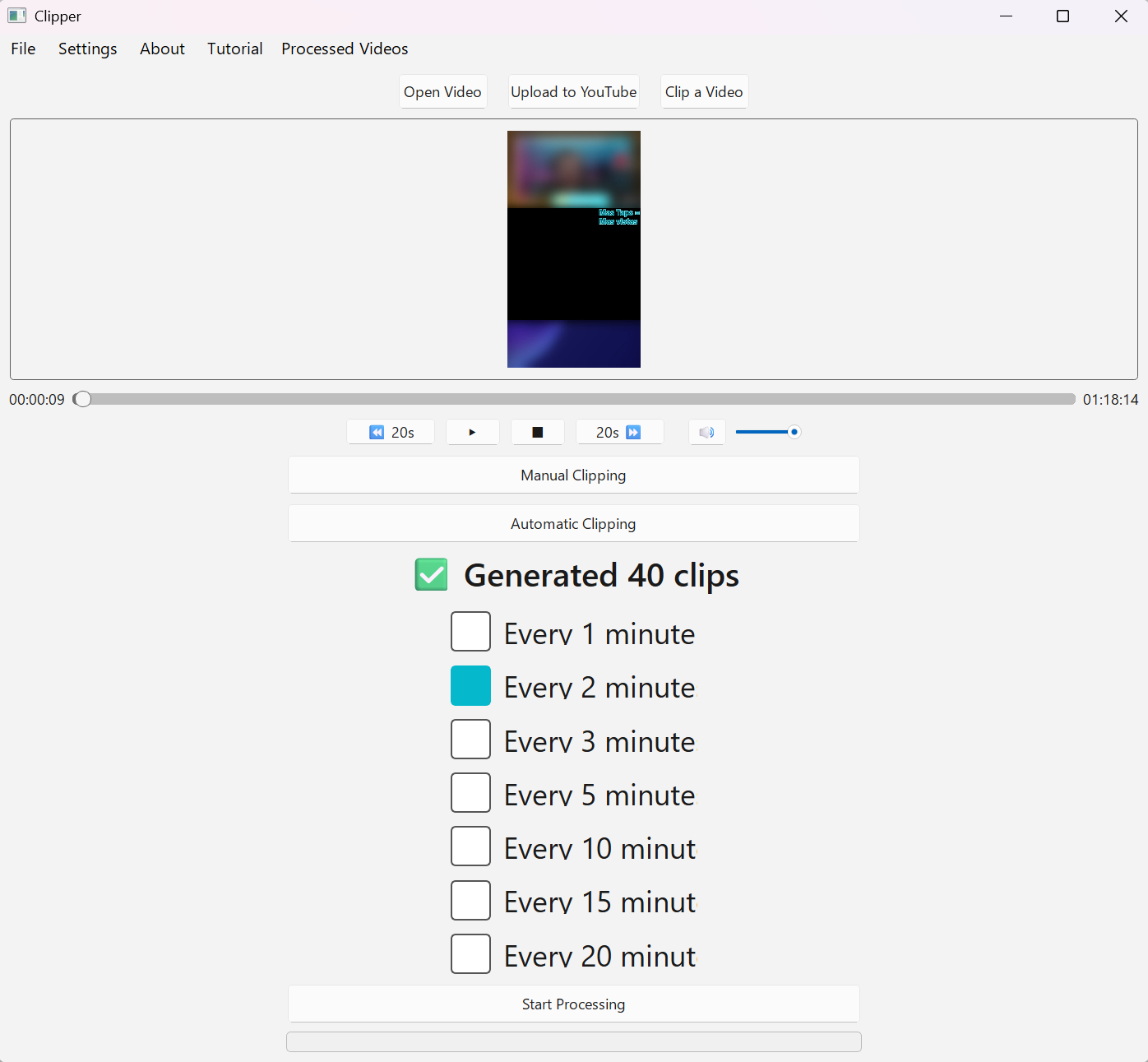
Automatic clipping: choose an interval (1–20 minutes) and generate clips automatically.
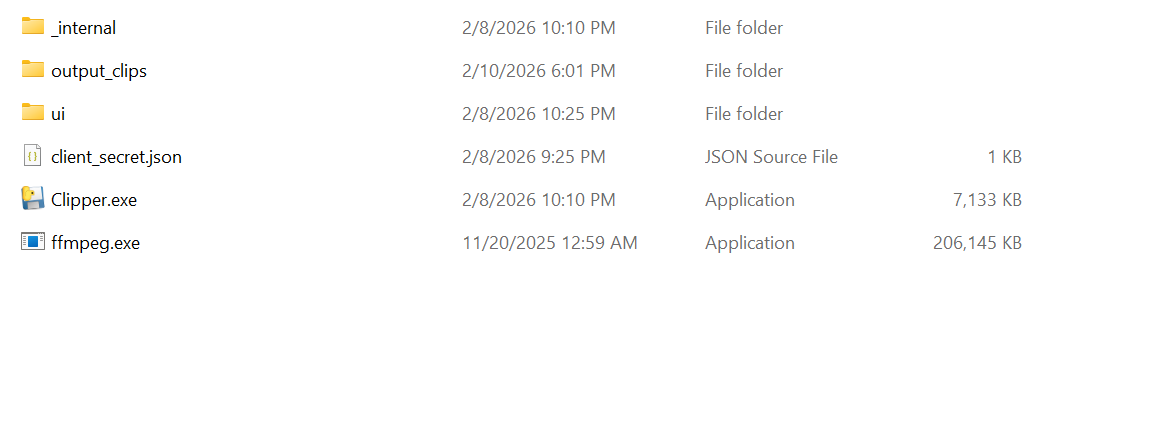
Step 3 — Review clips and build the upload queue
Select items and click Add Selected to Queue to prepare uploads.
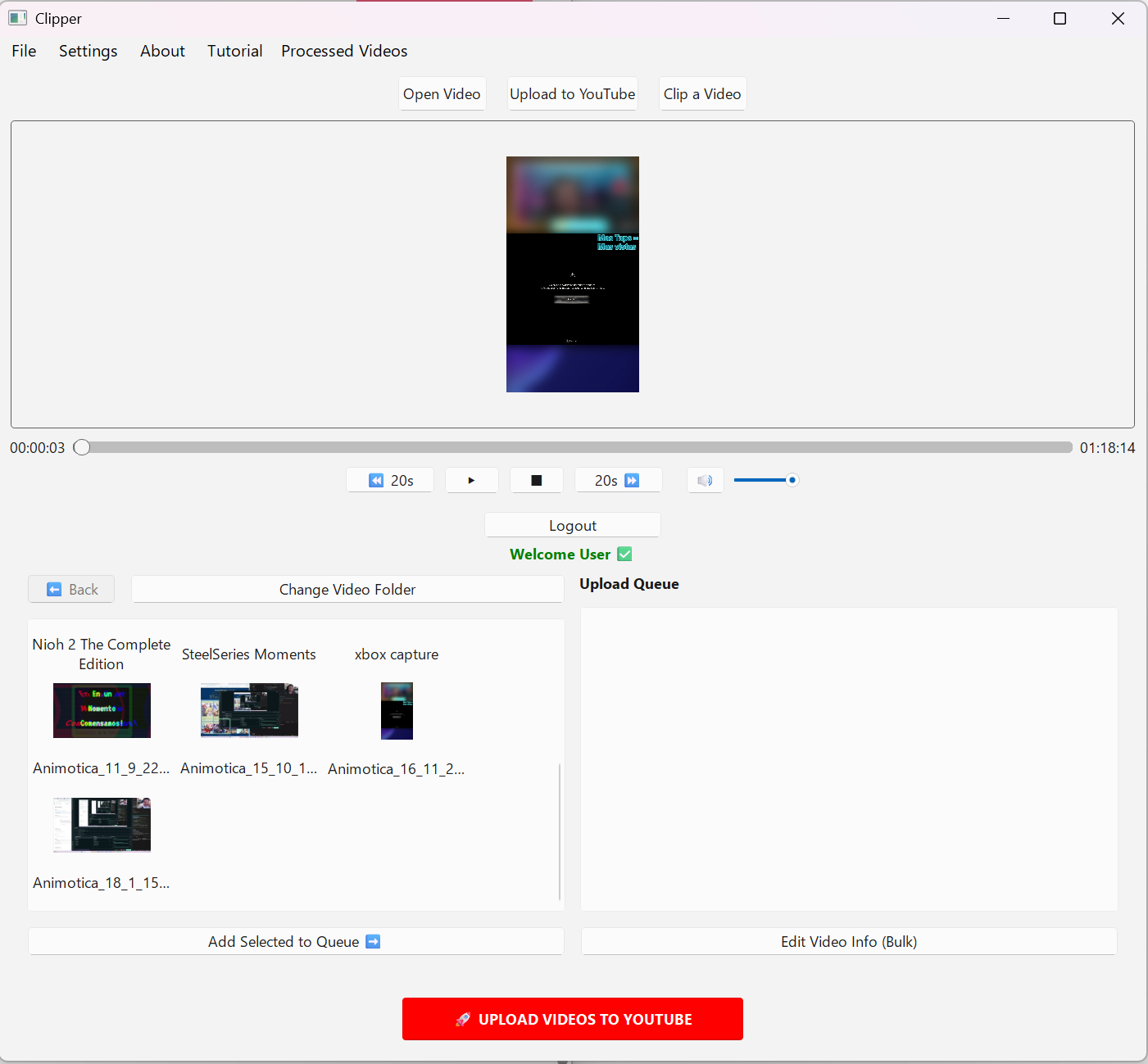
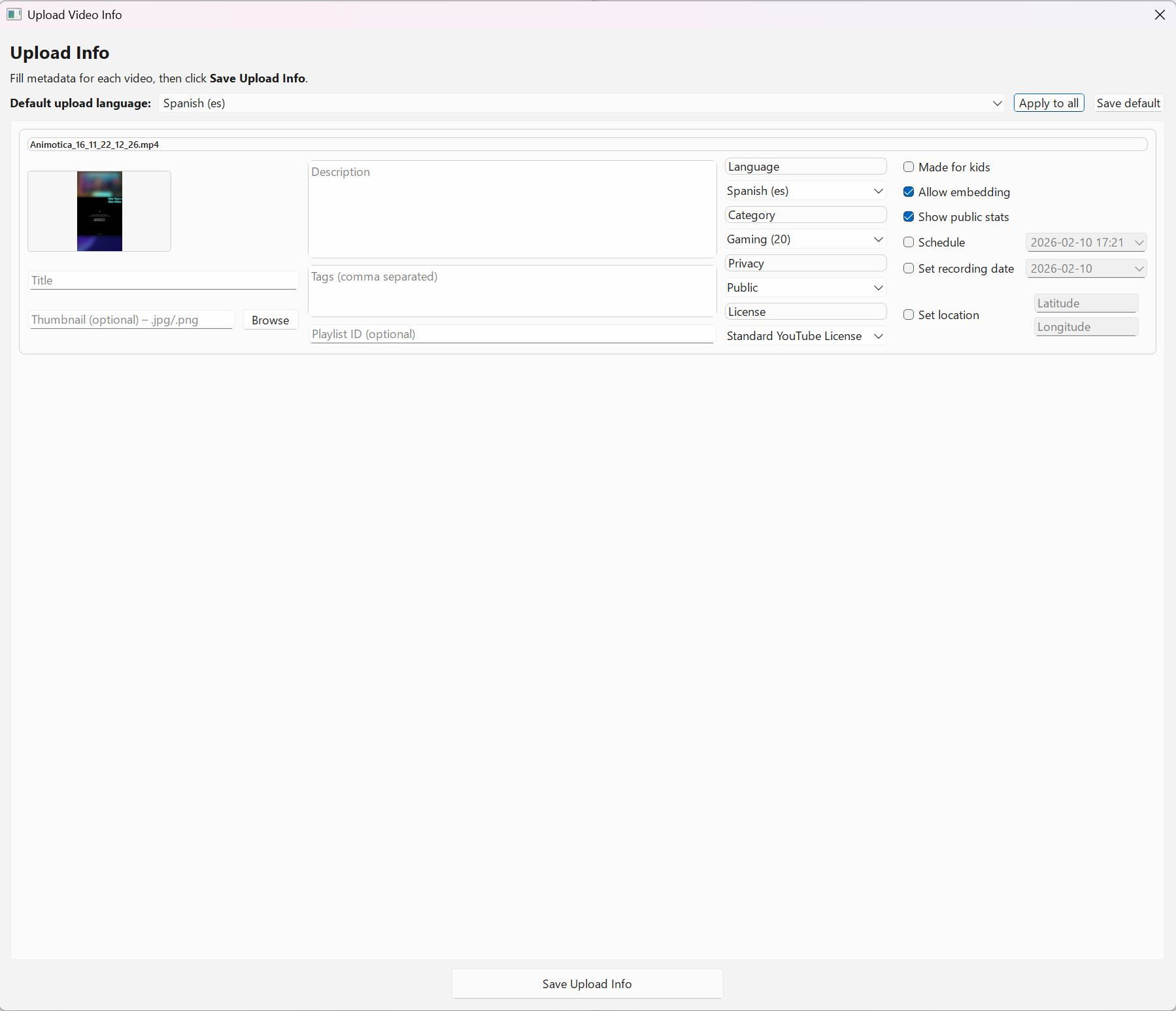
Step 4 — Edit video information (bulk)
Use Edit Video Info (Bulk) to set title, description, tags, language, privacy, thumbnails, and more.
Step 5 — Upload to YouTube
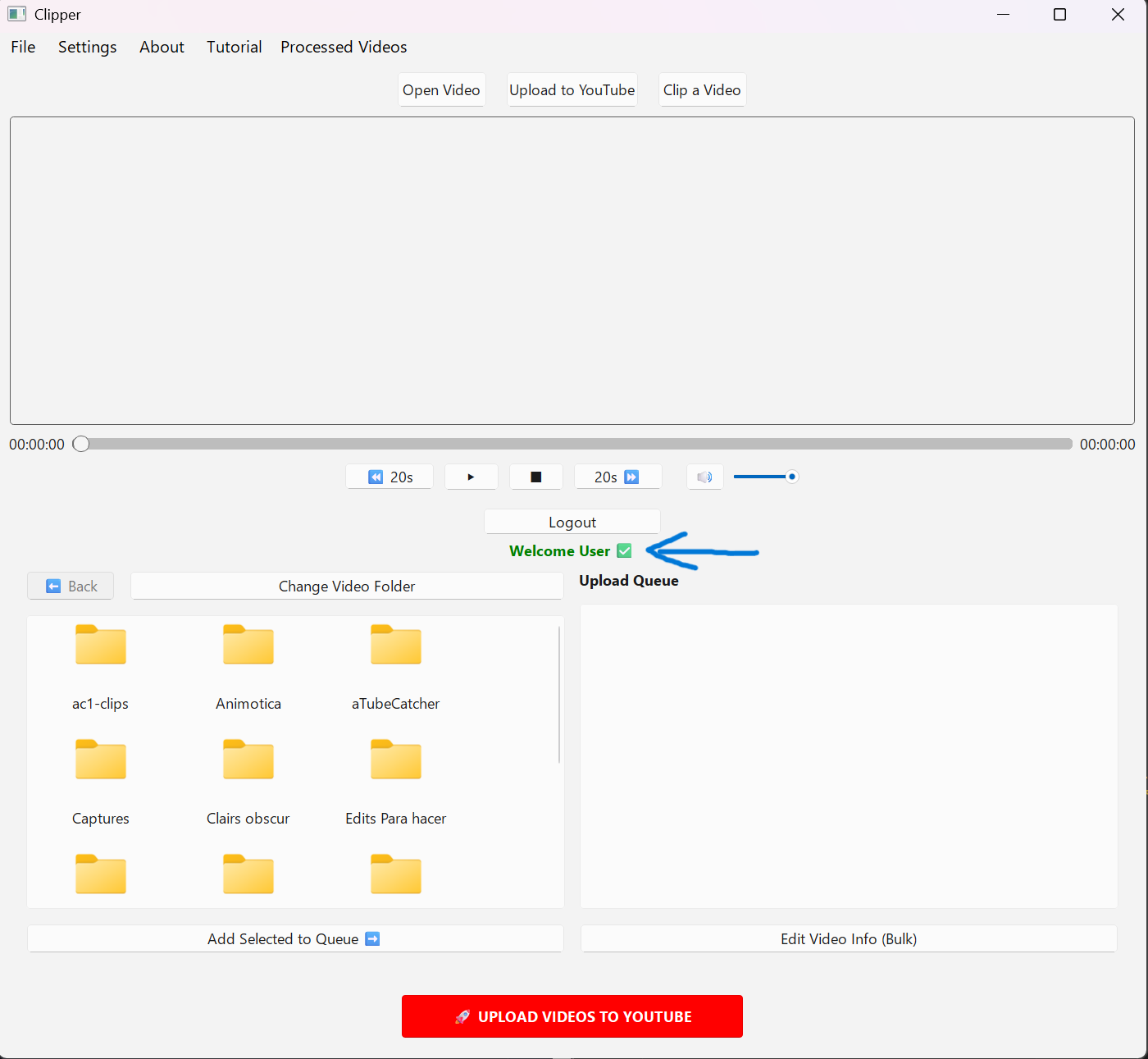
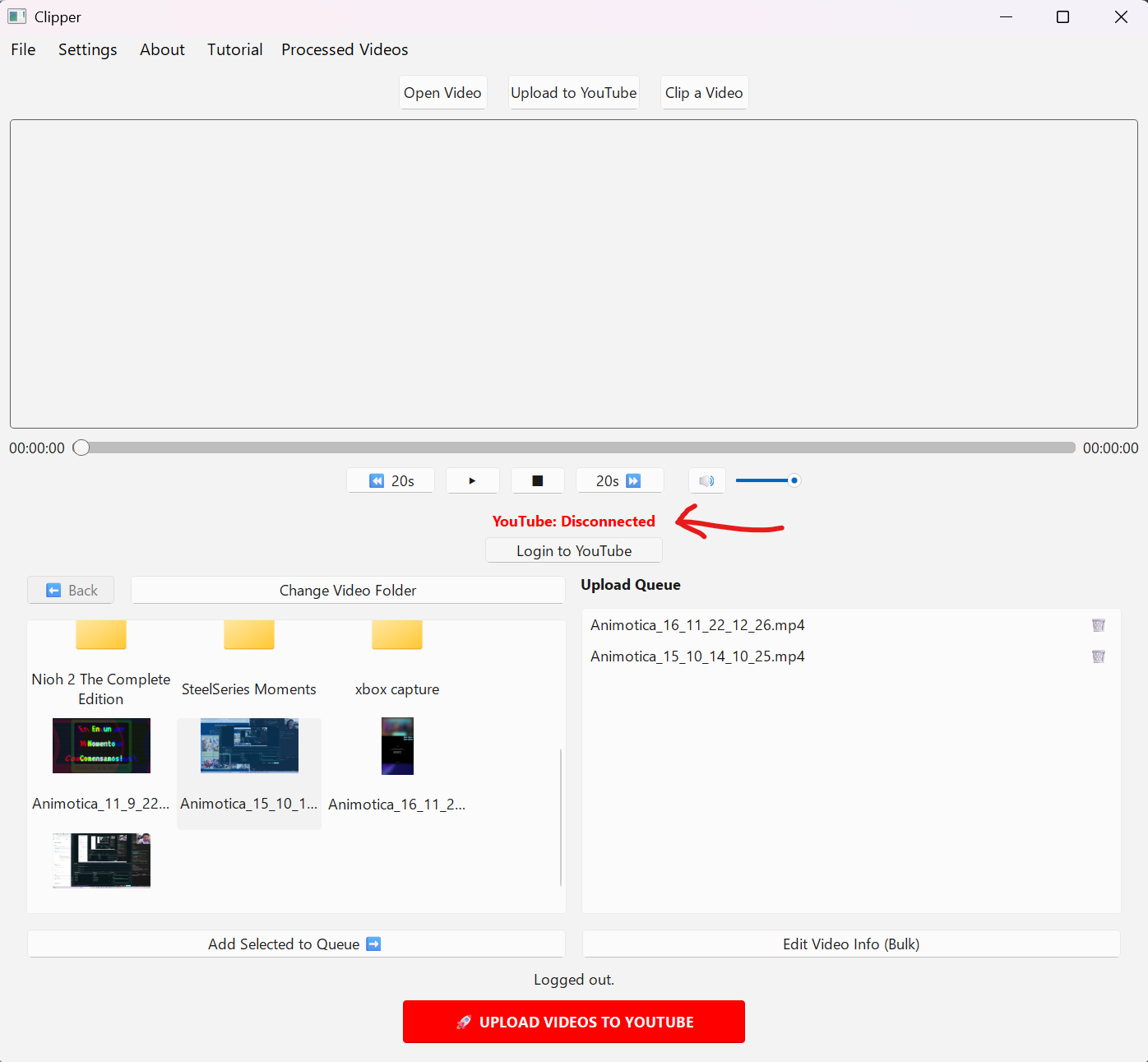
- Click Login to YouTube and sign in.
- The app shows a connected status (e.g., “Welcome …”).
- Click Upload Videos to YouTube to upload items from the queue.
TikTok upload (coming soon)
TikTok upload support is under development and will be enabled after TikTok API approval. The planned flow includes TikTok login and user-initiated uploads.
User control & consent
- Uploads are initiated by the user and require user confirmation.
- No automatic/background uploads are performed.
- Users remain responsible for their content and platform compliance.